By Clay Shumate
A classroom screen is a projected display that runs your routines for you: a timer, a noise meter, a work-mode symbol, and today’s task, all visible from the back row. Classroomscreen (classroomscreen.com) is the best-known free tool for it. Build one screen per phase of class, keep it to three or four widgets, and never project anything private.
Key Takeaways
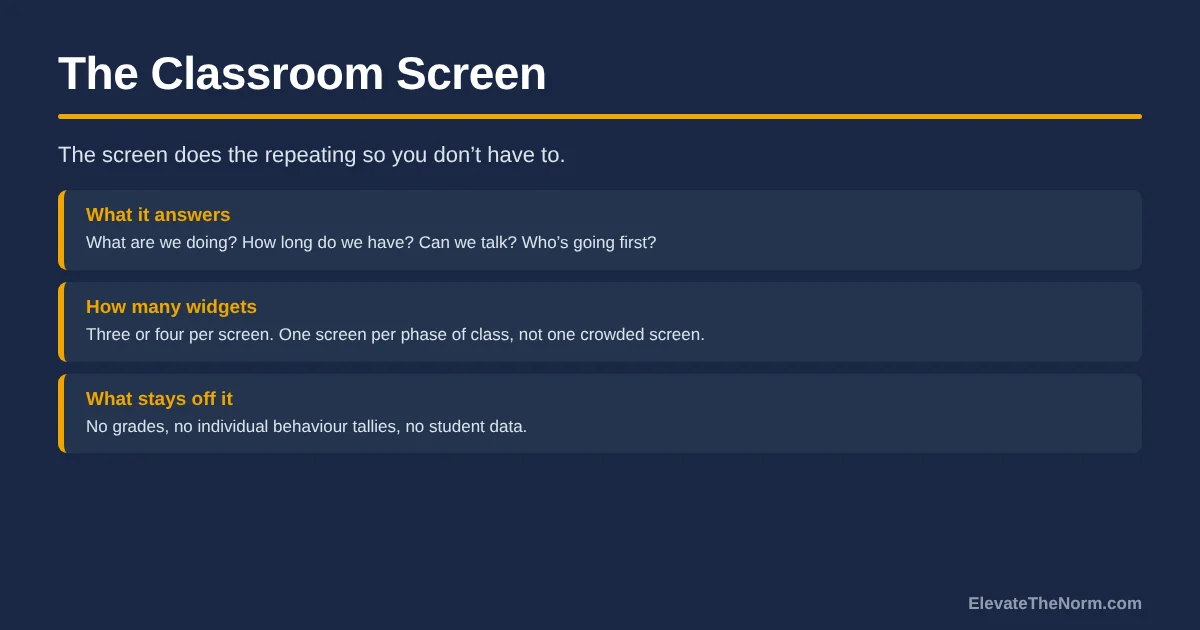
- The screen does the repeating so you don’t have to. Directions, time left, and the noise expectation stay up while you circulate.
- Classroomscreen’s free Basic plan includes all 26 widgets. The paid Pro plan adds saving and sharing whole screens, folders, and custom backgrounds.
- Five widgets cover most secondary routines. Timer, Sound level, Work symbols, Randomizer, and Traffic light.
- One screen per phase of class beats one crowded screen. Entry, instruction, work time, and closing each get their own layout.
- You don’t need any app to start. The built-in Clock apps on Windows and Mac both run countdown timers you can project.
- What stays off the screen matters as much as what goes on it. No grades, no individual behavior tallies, no student data.
What is a classroom screen?
“Classroom screen” means two things depending on who’s searching. In the general sense, it’s whatever you project at the front of the room while students work: a slide, a timer, a set of directions. In the specific sense, it’s Classroomscreen, a browser-based tool at classroomscreen.com that turns your projector or interactive panel into a dashboard of small tools it calls widgets.
The idea behind both is the same. A secondary class runs on a handful of questions students ask over and over: What are we doing? How long do we have? Can we talk? Who’s going first? A projected display answers those questions silently, for every student at once, and keeps answering them after you’ve walked to the back of the room to help someone. That’s the whole value. It’s a routine tool, not an engagement trick, and it works best when it sits underneath your classroom routines and procedures instead of replacing them.
What widgets does Classroomscreen have, and what’s free?
Classroomscreen’s widget menu lists 26 widgets: Work symbols, Backgrounds, Calendar, Clock, Dice, Draw, Embed, Event countdown, Group maker, Hyperlink, Image, PDF, Poll, QR Code, Randomizer, Scoreboard, Stickers, Stopwatch, Sound level, Text, Timetable, Timer, Traffic light, Video, Visual timer, and Webcam. Widgets are added from the widget bar along the bottom of the screen.
Here’s how the plans compare, based on Classroomscreen’s own pricing page and help center as of November 2026. Prices change, so check the pricing page before you budget for it.
| Plan | Cost listed | What you get |
|---|---|---|
| No account | Free | All 26 widgets during a lesson. No saving, sharing, or remote poll voting. |
| Basic | $0 | All 26 widgets, annotation bar, remote poll voting, three saved name lists, one saved countdown event, your own widget bar layout, and the template library. Does not save whole screens. |
| Pro | $36 per year (shown as $3 per month, billed annually) | Everything in Basic, plus saving and sharing screens, folders, saved custom backgrounds, custom widget themes, more name lists, and undo for deletes in the last 30 days. |
| Organization | Quote for schools and districts | Basic and Pro features with reassignable licenses. |
The practical line between the plans is saving. On Basic you can use every widget, but you rebuild your screen each time (your widget bar layout and name lists do save). On Pro you save a finished screen and reopen it next period. Classroomscreen also groups screens into “screen decks,” a series of screens you flick through, and a widget you pin stays in the same spot on every screen in that deck. Its getting-started guide suggests one deck per day.
How do I use a projected screen for routines?
Five widgets do most of the work in a 6–12 room. Here’s what each does, according to Classroomscreen’s own widget pages, and where it fits.
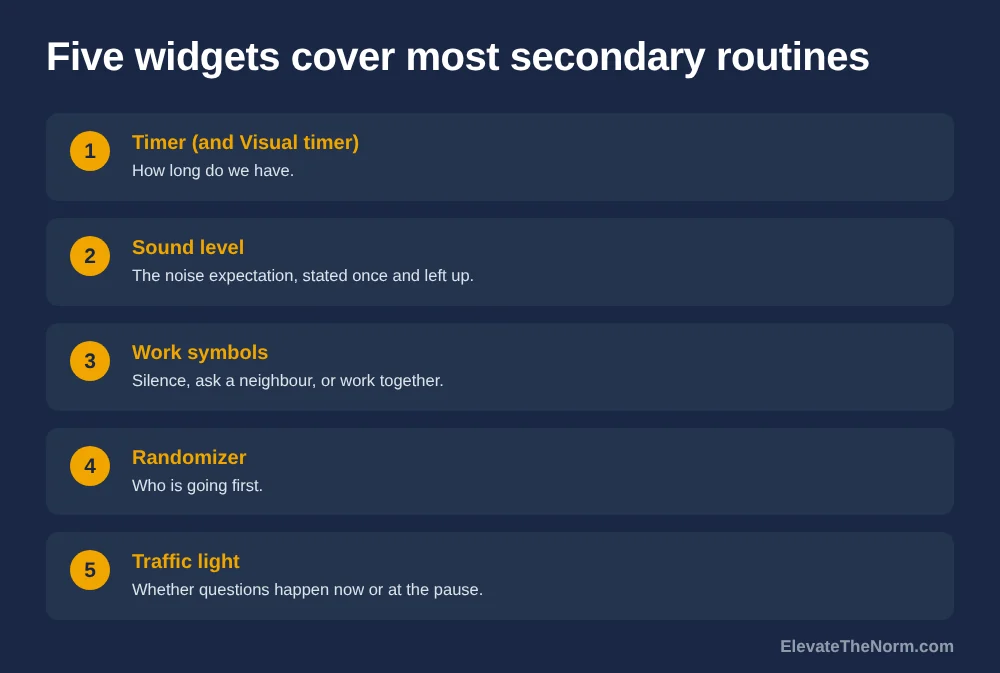
Timer (and Visual timer)
A countdown is the single most useful thing you can project. It answers “how long do we have” before anyone asks, and it makes your own pacing honest. Use it for the bell ringer, for timed partner talk, and for the last few minutes of work time. Classroomscreen has both a numeric Timer and a separate Visual timer widget, plus a Stopwatch for counting up.
Sound level (noise meter)
The Sound level widget uses a microphone to show the room’s current volume against a limit you set with a Max noise slider. A bell can sound when the room goes over the limit, and it rings again if the noise lasts 10 seconds; you can turn the bell off. There’s a sensitivity setting and a smoothing option that averages volume over time so a single cough or dropped book doesn’t trip it. Your browser will ask for microphone permission the first time.
Work symbols
Work symbols show the collaboration level expected right now. The widget’s own examples are “work together,” “ask neighbor,” “whisper,” and “silence.” This is the one to leave up all period, because it settles the most common argument in a secondary classroom: whether this part of class is a talking part.
Randomizer (random name picker)
The Randomizer picks from a name list you set up, either one name at a time or on a spinner wheel. Its “Remember chosen students” setting stops repeat picks until everyone has had a turn, and it offers to reset when the round is done. Free accounts can save three lists, which covers three class periods; past that you’ll paste names in again or need Pro. A visible random pick pairs well with cold calling because students can see the choice wasn’t aimed at them.
Traffic light
You tap red, yellow, or green and students adjust. Classroomscreen suggests several uses: noise level (red is silence, yellow is whisper, green is discussion), when it’s OK to approach the teacher, device rules (red is no devices, yellow is devices only when told, green is devices allowed for learning), and student progress check-ins. Pick one meaning per class and stick to it, or the colors stop meaning anything.
What’s a good bell-to-bell classroom screen layout?
This is a four-screen layout you can build tonight. Put all four in one screen deck and pin the Clock so it stays in the corner of every screen. On Basic, build it at the start of the day and leave the tab open; on Pro, save it once and reuse it.
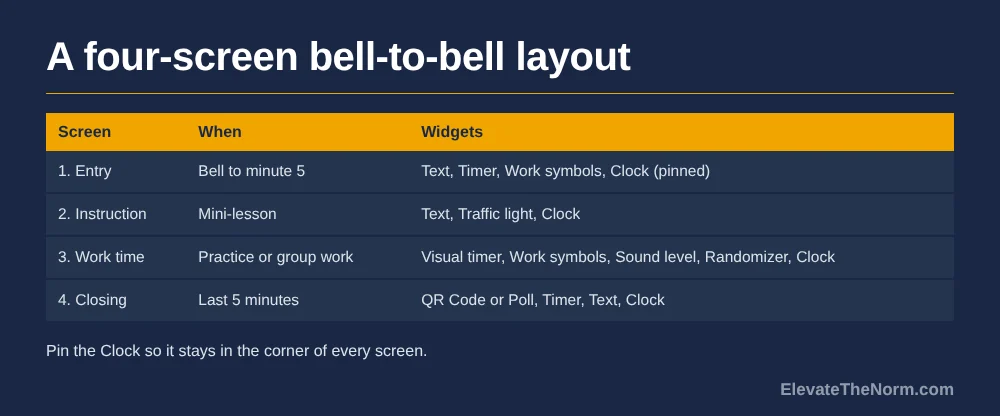
| Screen | When | Widgets | Settings |
|---|---|---|---|
| 1. Entry | Bell to minute 5 | Text, Timer, Work symbols, Clock (pinned) | Text: the bell ringer prompt and “Materials: notebook, pencil.” Timer: 5:00. Work symbols: silence. |
| 2. Instruction | Mini-lesson | Text, Traffic light, Clock | Text: today’s learning target and a three-line agenda. Traffic light: red for “questions at the pause, not during.” |
| 3. Work time | Practice or group work | Visual timer, Work symbols, Sound level, Randomizer, Clock | Visual timer: length of the task. Work symbols: ask neighbor or work together. Sound level: smoothing on. Randomizer: ready for the share-out. |
| 4. Closing | Last 5 minutes | QR Code or Poll, Timer, Text, Clock | QR Code: link to the exit ticket. Timer: 3:00. Text: “Before you leave: exit ticket, chair in, trash out.” |
A few rules make this layout work:
- Switch screens out loud. Say “We’re moving to work time” as you click. The screen backs up your voice; it doesn’t replace it.
- Keep text to what a student needs in the next ten minutes. The full lesson belongs in your slides or the handout.
- Start the timer before you start talking. If the bell ringer timer is already running when students walk in, the routine starts without you. For prompts, these bell ringer ideas or the daily ones at Daily Bell Ringers drop straight into a Text widget.
- Use the same layout for at least a few weeks. The point is that students stop needing to read it.
- Pair screen changes with your transition cue. Your transition routine and the screen change should happen at the same moment.
Are there free alternatives to Classroomscreen?
Yes, and the simplest ones are already on your computer. Classroomscreen itself also runs without an account, so “free” doesn’t require switching tools. If your school blocks it or you only need a timer, here are options you can verify on the vendor’s own help pages:
- Windows Clock app. Open Clock from Start and choose Timer. Microsoft’s help page says it comes with four preset timers, you can add your own with the plus icon, and timers keep working when the app is closed or the device is locked.
- Mac Clock app. Open Clock, click Timers, set the time, and click Start. Apple’s guide says you can name each timer, choose its sound, and run more than one at once, and timers keep running if you switch apps or the Mac sleeps.
- A slide you already have. A single slide with the task, the work-mode expectation in large type, and the end time written out (“Work until 10:42”) does most of what a dashboard does. It’s less precise than a countdown, but it never fails to load.
- A whiteboard corner. Low-tech, but a permanent spot for “Now / Next / Done when” works for any class and survives a projector bulb dying.
What the free OS timers don’t give you is the noise meter, work symbols, or a name picker. If those matter to you, Classroomscreen’s free tiers cover them.
What should I never put on a classroom screen?
A projector is a public billboard for everyone in the room, plus anyone walking past the door or watching a recording. Keep these off it:
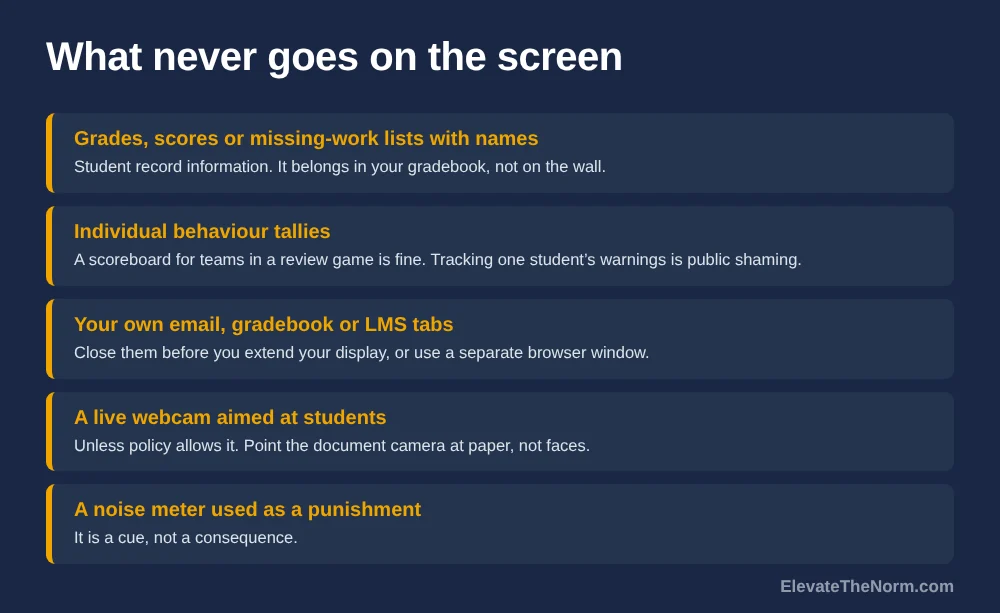
- Grades, scores, or missing-work lists with names. That’s student record information, and it belongs in your gradebook, not on the wall.
- Individual behavior tallies. A Scoreboard is fine for teams in a review game. Using it to track one student’s warnings turns a routine tool into public shaming.
- Your own email, gradebook, or LMS tabs. Close them before you extend your display, or use a separate browser window for the projector.
- A live webcam aimed at students unless your school’s policy allows it. The Webcam widget is useful for document-camera work; point it at paper, not faces.
- A noise meter used as a punishment. If the bell goes off and there’s a consequence every time, students learn to game the microphone. Use it as information.
- More than four or five widgets. Past that, students stop reading any of them.
Before you turn on Sound level or Webcam, check with your school’s tech office. Both ask your browser for microphone or camera access, and Classroomscreen’s help page on those permissions doesn’t say anything about how audio or video is handled, so the district’s approved-tools list is the right place to confirm.
Clay’s take: Use it for routines, not for show
The teachers who get the most out of a classroom screen are the ones who use the fewest widgets. A timer and a work symbol left up all period will do more for a 7th period than a screen full of stickers and a spinning wheel. Build the four-screen deck above, run it unchanged for a month, and only add a widget when you can name the student question it answers. If you already have solid attention getters and transitions, the screen makes them quieter. If you don’t, fix those first, because no widget will.
Does a projected screen actually improve anything?
Worth being straight about this: there is no body of research showing that Classroomscreen, or any projected widget dashboard, raises achievement. Nobody has run that study, and if someone tells you the timer improved their test scores they are describing a classroom that changed several things at once. The honest claim is narrower and still worth making.
What the screen plausibly does is protect instructional time by removing the repeated questions that eat the start and end of a period. That mechanism has a real evidence base behind it even though the tool does not: Kraft and Novicoff’s 2024 analysis of instructional time found districts losing a substantial share of the period to transitions, off-task behaviour and wait time together, with the figure rising through the grades. A timer that is already running when students walk in is a transition fix. Judge the screen on whether your entry routine got shorter, not on anything larger.
What to do next week
Build screen one only. Open Classroomscreen in a tab tonight, add a Text widget with tomorrow’s bell ringer and the materials line, a five-minute Timer, Work symbols set to silence, and pin the Clock. That is the whole task and it takes about four minutes.
Then start the timer before you start talking. The single change that makes this tool worth the tab is that the routine begins without you, while you are still taking attendance or catching the student who needs a word at the door. Run that one screen for a week before you build the other three. If entry is visibly faster, build work time next, because that is where the sound level and the randomizer earn their place. If nothing changed, the problem is the routine rather than the display, and a nicer screen will not fix it.
Frequently Asked Questions
Is Classroomscreen free?
Yes. Classroomscreen’s Basic account is free and includes all 26 widgets, the annotation bar, remote poll voting, three saved name lists, and the template library. You can also use the widgets without an account. The paid Pro plan, listed at $36 a year in November 2026, adds saving and sharing whole screens, folders, and custom backgrounds. Check the pricing page for current rates.
What is the difference between Classroomscreen Basic and Pro?
Basic gives you every widget but doesn’t save whole screens, so you rebuild your layout each session; your widget bar layout and up to three name lists do save. Pro lets you save, share, and organize screens in folders, save custom backgrounds, use custom widget themes, keep more name lists, and undo deletes from the last 30 days.
How does the Classroomscreen noise meter work?
The Sound level widget listens through your device’s microphone and shows the room’s volume against a limit you set with a Max noise slider. A bell can sound when the room goes over, and again if the noise lasts 10 seconds. You can turn off the bell, adjust sensitivity, and turn on smoothing so brief sounds like a cough don’t trigger it.
Can I use a classroom screen without Classroomscreen?
Yes. The Clock app on Windows and the Clock app on Mac both run countdown timers you can project, and both keep running in the background. A single slide with the task, the work-mode expectation, and a written end time also works. You lose the noise meter and name picker, but the core routine stays the same.
How many widgets should I put on one screen?
Three or four is plenty for most secondary classes. Students need to find the answer to one question at a glance, such as how much time is left or whether they can talk. Past four or five widgets, the screen turns into clutter and students stop reading it. Use separate screens for each phase of class instead.
Does Classroomscreen work for high school or only elementary?
It works at any grade level because the core widgets are routine tools, not games. High school classes get the most from the timer, work symbols, random name picker, QR code, and poll. Skip the stickers and themed backgrounds, keep the text short and plain, and use the same layout long enough that students stop needing to read it.
Is it safe to use the webcam and microphone widgets?
Both widgets ask your browser for permission the first time, and Classroomscreen’s help page explains how to allow or reset that access. It doesn’t describe how audio or video is handled, so check your district’s approved-tools list and policy before using them. If you use the webcam, point it at documents rather than students.
Sources
- Classroomscreen. (n.d.). Pricing. Used for the Basic, Pro, and Organization plan features and the listed Pro price.
- Classroomscreen. (n.d.). Different account types. Used for what works with no account versus Basic, including the saved name list and countdown limits.
- Classroomscreen. (n.d.). Work symbols. Used for the Work symbols options and the full list of 26 widgets in the site’s widget menu.
- Classroomscreen. (n.d.). Sound level. Used for how the noise meter, alarm, sensitivity, and smoothing settings work.
- Classroomscreen. (n.d.). Traffic light. Used for the suggested meanings of red, yellow, and green.
- Classroomscreen. (n.d.). Randomizer. Used for the name list, wheel format, and no-repeat settings.
- Classroomscreen. (n.d.). The ultimate getting started guide. Used for the widget bar, screen decks, and pinned widgets.
- Classroomscreen. (n.d.). Fixing camera and microphone issues. Used to confirm that the Webcam and Sound level widgets request browser camera and microphone access.
- Microsoft. (n.d.). How to use alarms and timers in the Clock app in Windows. Used for the Windows timer steps and background behavior.
- Apple. (n.d.). Clock User Guide for Mac: Set timers. Used for the Mac timer steps and multiple-timer support.